How to create a student profile and register for a class
Step 1
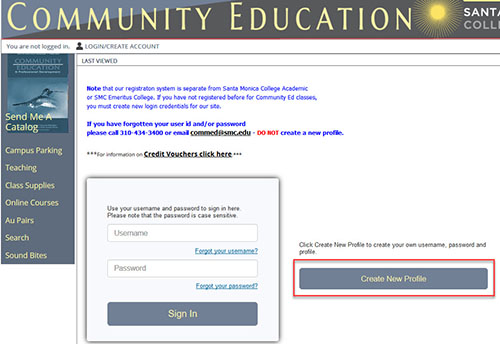
- To create a new account, click on Create New Profile button on the Sign-In page.
Step 2
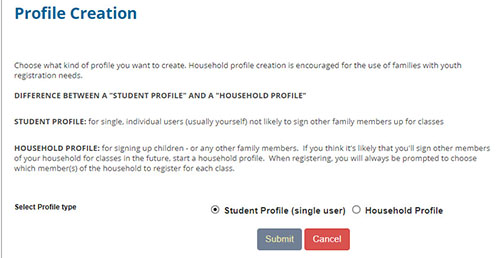
- Select either the Create a Student Profile checkbox (single user) or the Household Profile, if for a household.
- Click Submit.
Step 3
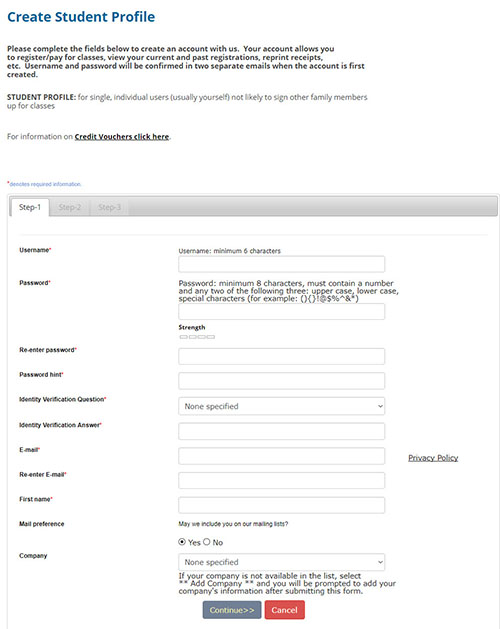
- Enter a Username (we recommend the first initial of your first name followed by your last name).
- Email and mail preference.
Secure your username & password in a safe place for access at a later date.
Step 4
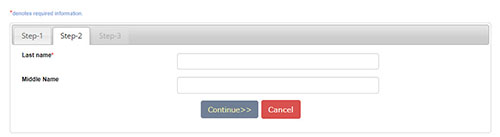
- Enter required information: last name
Step 5
- Enter all required information. You will need to have a US residence in order to register for our classes.
- When you have completed your student profile, click submit.
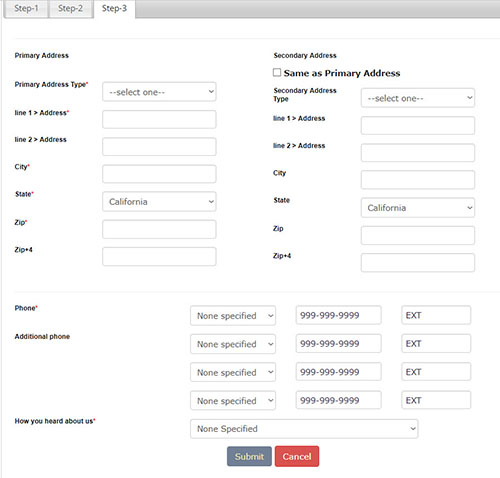
After submitting this page, you will receive a confirmation by email and will be returned
to the Courses page to browse and select a course for which to register.
If you are not signed in, you will want to click on the Login/Create account link on the upper-left section of our web pages, then on the Sign-in page, sign-in using the username and password you selected when creating your profile. If you are signed in you can start to browse for a class, as outlined below.
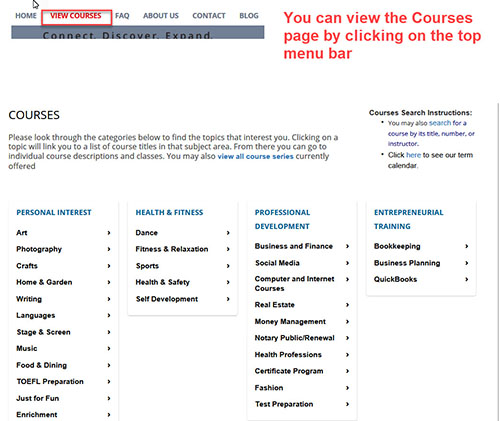
You can browse for classes from our Courses page (see below) or by using the Search widget in the upper-right corner of our web pages.
Step 1
- From the Courses page, locate a preferred Category.
- Click the preferred category link.
After clicking on your preferred category, you will land on the class listing page, which lists the classes in that category.
Step 2
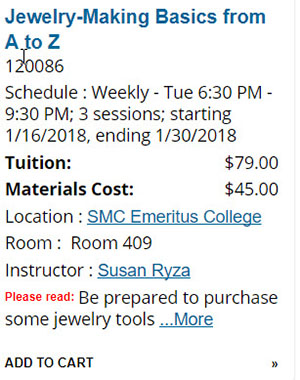
- Locate your preferred class.
- Click the add to cart button or click on the course title to view the Course Detail page.
When a class or classes are added to the shopping cart, options become available in the left-side bar.
- Choose Additional Classes.
- Edit Cart.
- Checkout.
Step 3
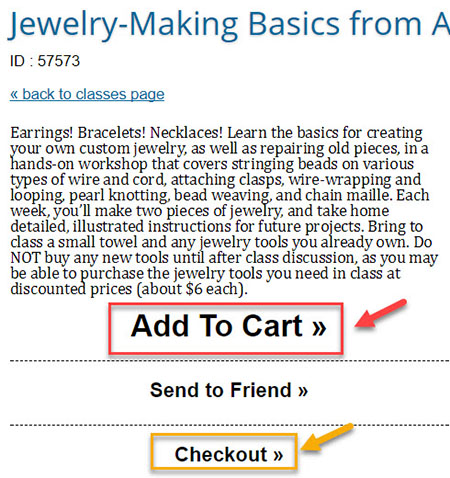
- You can read more detailed information on the class.
- You can add the class to the shopping cart, or go to checkout.
Step 4
- Review your order and the Refund Policy and check the "Agree" box.
- You can checkout or do a number of other tasks, like apply a promo code, or gift code, for example, if you have a discount code, type it into the blank field, and then click "Apply Class Code."
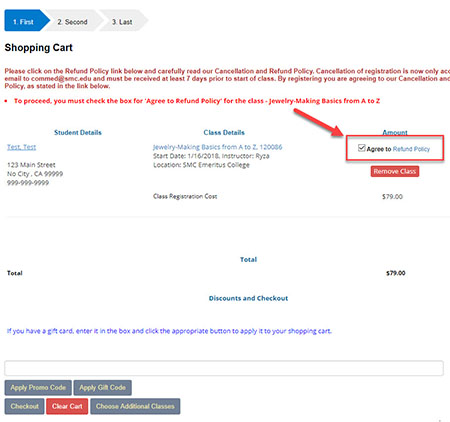
Once you checkout, you will be taken to a page to enter in your payment details and complete the checkout process. Once you checkout, you will receive a confirmation and email receipt.